3CX Active Connection
This connection method has known issues due to the poor quality of call data the 3CX natively produces. We recommend using our CXD Connector method to obtain call records from your 3CX.
These instructions help you configure your 3CX phone system to work with TIM Plus. Contact your system maintainer if you are not familiar with the configuration of your PBX.
Support files
Ensure the following support files exist in the /config/ folder of the TIM Plus application:
3CX.TDS
3CX.TDT
Contents
Configuring the SMDR output
You will need to allow the SMDR port number through your firewall to enable us to connect to your 3CX phone system!
Follow the steps below to enable the SMDR output in your telephone system:
- Log in to your 3CX server and from the main menu go to Settings -> CDR, as shown below:

Tick the Enable CDR box and from the drop-down list, select the Server/Passive Socket option.
In the port field, enter the port number that will be able to connect to the machine running TIM Plus. We recommend using 9000.
To configure the SMDR output, click on the Configure tab.
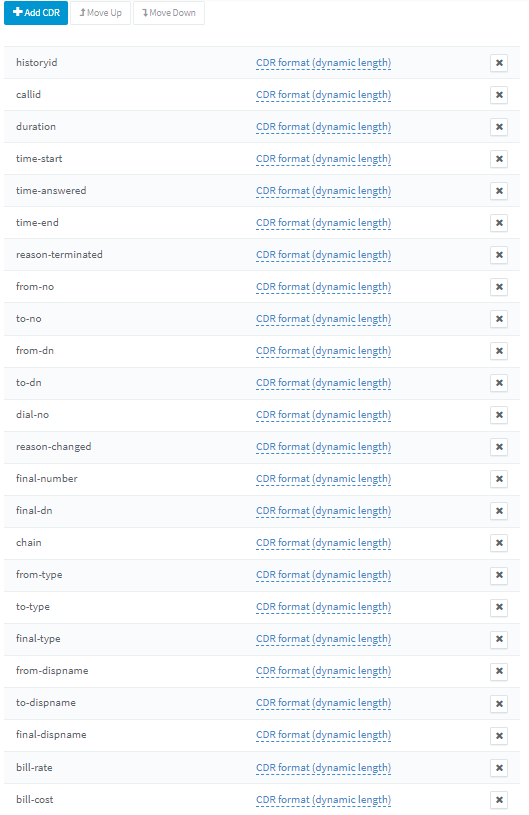
Enable the required fields in the EXACT ORDER as shown in the screenshot below and if there are any additional CDR fields, please remove them, as shown below:
- Click OK to save the changes.
Configuring TIM Plus
Follow the steps below to configure TIM Plus to connect to your telephone system:
- Click on the
Directorytab. - If you don't have a site set up, press
Addand selectPBXfrom the drop-down menu. In the dialogue window, name your site and then selectAdd.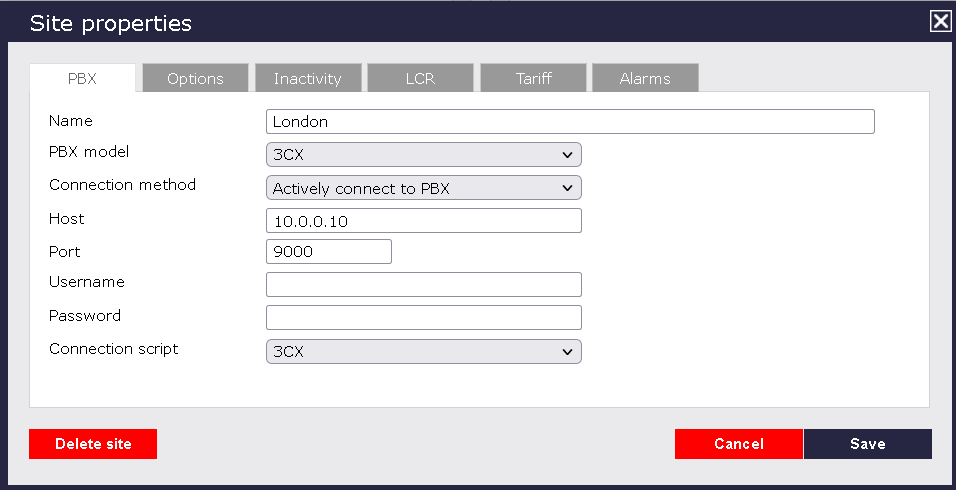
- In the Site Properties window, select 3CX from the PBX model drop-down list.
- In the Connection method field, select Actively connect to PBX from the drop-down list.
- In the Host field, enter the IP address of your telephone system.
- In the Port field, enter the port number configured in the telephone system.
- Leave the Username and Password fields blank.
- In the Connection script field, select 3CX from the drop-down list.
- Click on the
Optionstab and tick the Keep a local backup of any data tickbox, as shown below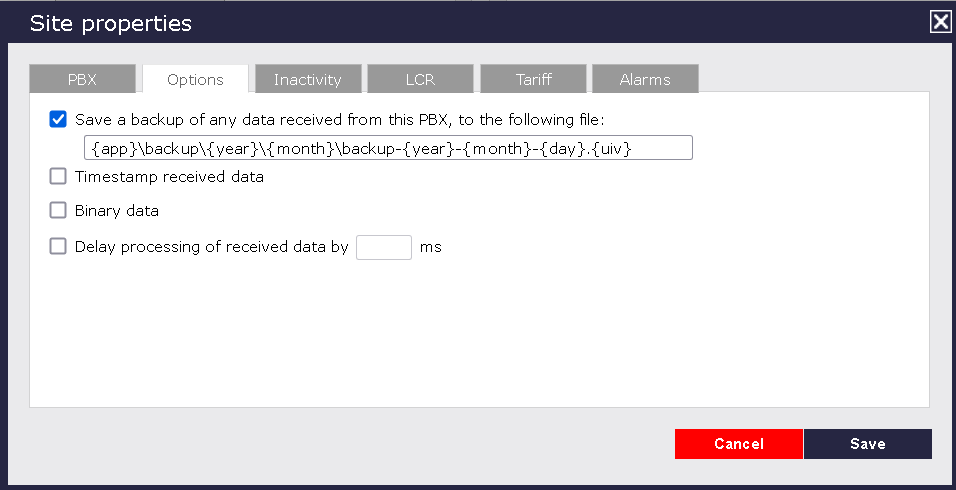
- Click on the Save button to apply the settings.